Chapter 1: Setting Up and Your First Program
Every programmer you admire once sat in front of a blank screen, unsure where to type the first line. This chapter is about getting past that moment quickly. By the end of it you will have Python installed, you will know two comfortable places to write code, and you will have run real programs that print messages, do arithmetic and even fail on purpose so that you learn to read error messages without fear.
Why Python? Because it reads almost like plain English, it is free, it runs on Windows, macOS and Linux, and it is used for everything from school projects to data analysis, websites, automation scripts and artificial intelligence. Most importantly for a beginner, Python lets you get a useful result in a few lines. You spend your energy on the idea, not on ceremony.
Installing Python
Visit the official website, python.org, open the Downloads section and pick the latest stable Python 3 release for your operating system. Any version from 3.8 onwards will run every example in this book, but newer is better because error messages keep getting friendlier.
- Windows: run the installer and, on the very first screen, tick the box that says Add python.exe to PATH. This single tick saves a lot of confusion later. Then click Install Now.
- macOS: run the downloaded package installer and follow the steps. It also installs a program called IDLE inside your Applications folder.
- Linux: Python 3 is usually already present. If not, install it with your distribution's package manager (for example, the
python3package on Ubuntu).
To confirm the installation, open a terminal (Command Prompt or PowerShell on Windows, Terminal on macOS and Linux) and type python --version on Windows or python3 --version on macOS and Linux. If you see something like Python 3.12.4, you are ready. If Windows says the command is not recognised, the PATH box was probably not ticked; run the installer again, choose Modify, and enable it. On Windows you can also try py --version, which uses the Python launcher.
Where to write code: IDLE and VS Code
IDLE comes bundled with Python. It is simple, light and perfect for your first week. When you open it you see the Shell window. Choose File → New File to open an editor window where you can type a whole program, save it with a .py extension and press F5 to run it.
Visual Studio Code (VS Code) is a free editor used by professionals. Install it, open the Extensions panel, and add the official Python extension published by Microsoft. Now when you open a .py file you get colour highlighting, auto-completion, and a small Run button at the top right. Use IDLE if you want zero setup; move to VS Code whenever you feel ready. Everything in this book works in both.
The REPL versus program files
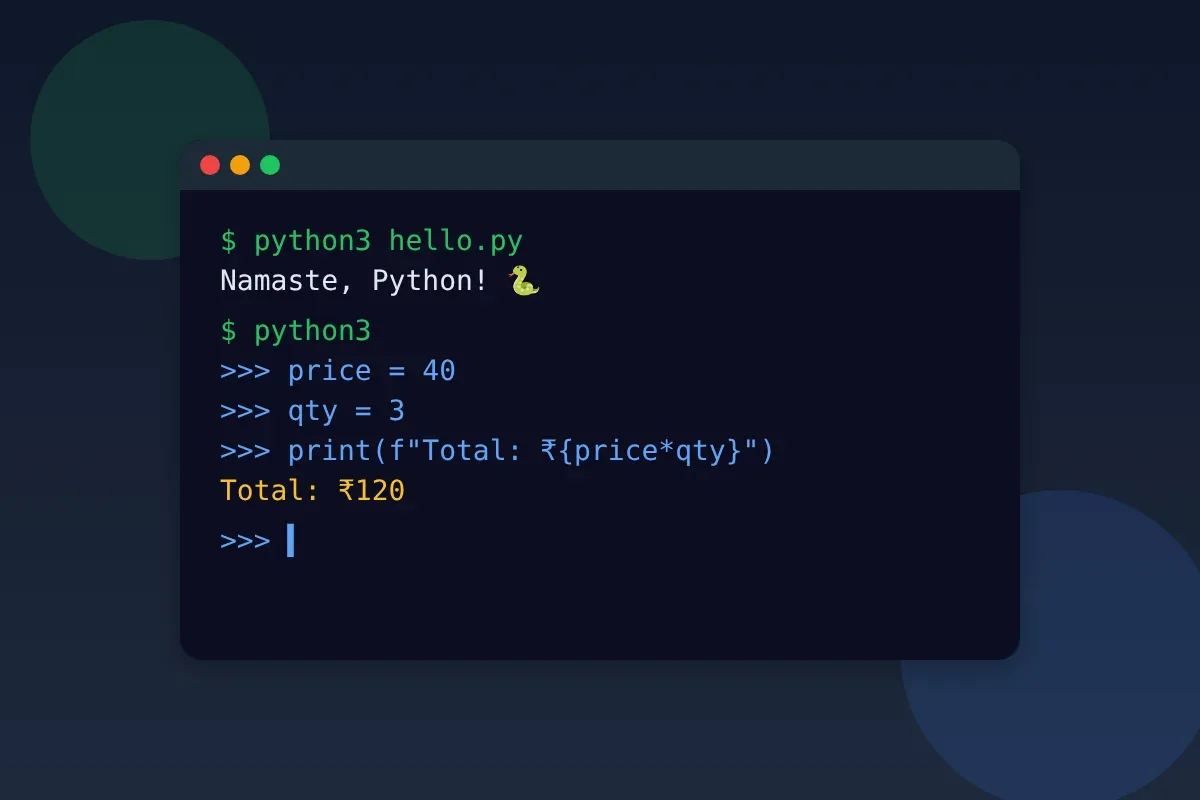
Python can be used in two modes. The first is the interactive shell, often called the REPL (Read, Evaluate, Print, Loop). You see a prompt of three arrows, you type one line, Python answers immediately, and waits again. It is like a calculator that also understands text. Open it by typing python (or python3) in a terminal, or simply by opening IDLE.
# Lines typed at the >>> prompt (shown here as comments):
# >>> 250 + 180
# 430
# >>> 3 * 45
# 135
# >>> "Chai" + " " + "Biscuit"
# 'Chai Biscuit'
print(250 + 180)
print(3 * 45)
print("Chai" + " " + "Biscuit")
Run as a file, the code above prints 430, 135 and Chai Biscuit on three lines. Notice one difference: in the REPL, Python automatically shows the value of whatever you type. In a file, nothing appears unless you ask for it with print(). The REPL is for experimenting and checking small ideas; files are for programs you want to keep, improve and run again tomorrow. Leave the REPL by typing exit().
Your first real program
Create a new file called hello.py and type the following. Do not copy-paste; typing builds muscle memory, and the small mistakes you make while typing are part of the learning.
# hello.py - my first Python program
# Lines starting with # are comments. Python ignores them.

print("Namaste! Welcome to Python.")
print("Today we start a new journey.")

# print can take several values, separated by commas
print("Price of 1 kg mangoes:", 120, "rupees")

# Python is also a calculator
print("Cost of 3 kg:", 120 * 3, "rupees")

# An empty print() gives a blank line
print()
print("Bye for now!")
When you run it, the output is:Namaste! Welcome to Python.Today we start a new journey.Price of 1 kg mangoes: 120 rupeesCost of 3 kg: 360 rupees
(a blank line)Bye for now!
Look closely at what happened. Text inside quotes is called a string, and it is printed exactly as written. Numbers are printed as numbers, and an expression such as 120 * 3 is calculated first, then printed. When you give print several items separated by commas, it puts a single space between them automatically. Python runs the file from top to bottom, one line at a time; that simple idea of order will matter in every chapter that follows.
Comments: notes for humans
A comment starts with the # symbol and continues to the end of the line. Python skips it completely. Comments exist for people, including the future you who opens this file three months later and wonders what you were thinking. Good comments explain why something is done, not what is obvious. # add 18% GST is helpful; # multiply is not. You can also temporarily disable a line by putting # in front of it, which is handy while testing.
Errors are your friends
Beginners often feel that an error means they have failed. Professionals see errors as free advice. Python stops, tells you which line upset it, and names the kind of problem. Let us make mistakes deliberately. The program below has one, in the last line:
print("Ticket booked for Howrah to Puri")
print("Seats:", 2)
prnt("Have a safe journey")   # deliberate spelling mistake
The first two lines run and print normally. Then Python reports something like:Traceback (most recent call last): File "hello.py", line 3, in ...NameError: name 'prnt' is not defined. Did you mean: 'print'?
Read an error message from the bottom up. The last line names the error type and the reason. The line above it tells you the file and the line number. Newer versions of Python even suggest the fix. Correct prnt to print and run again.
You will meet a few error types again and again. A SyntaxError means Python could not even understand the grammar, for example a missing closing quote or bracket. A NameError means you used a name Python does not know, often a typo. A TypeError means you combined things that do not fit, such as adding a number to a piece of text. An IndentationError means the spaces at the start of a line are wrong, which will matter from Chapter 3. Each of these is a clue, not a punishment.
An error message is the computer's way of saying: here is exactly where to look.
— A habit worth building
One last tip for this chapter: change one thing at a time and run often. If you write fifty lines before running, an error could be anywhere. If you run after every few lines, the error is almost always in what you just typed. That small habit will save you hours.
Try it yourself
- Write a program that prints your name, your city and your favourite food on three separate lines.
- In the REPL, work out the cost of 12 samosas at 15 rupees each and 4 cups of chai at 10 rupees each, then add both.
- Print a small box made of
*characters, five stars wide and three lines tall. - Remove a closing quote from one of your print lines on purpose. Read the SyntaxError carefully, then fix it.
- Add a comment above every line of your program explaining why that line exists.